
After completing the integration of SAP Joule with SAP S/4HANA Private Cloud, you may encounter a common issue where the Joule URL shows an error like:
https://<subaccount>.eu10.sapdas.cloud.sap refused to connect
This issue usually occurs because the Content Security Policy (CSP) of the SAP S/4HANA system is blocking the Joule URL. To resolve this, you need to explicitly trust the Joule URL in your S/4HANA system.
Below are the step-by-step instructions to fix this issue.
Step 1: Find the Joule URL from SAP BTP
- Log in to SAP BTP Cockpit.
- Navigate to your Subaccount.
- Go to Instances and Subscriptions (or Services → Instances, depending on your cockpit view).
- Locate the Joule instance and open it.
- The instance will open in a new browser tab.
- From the address bar, copy the URL. It will look like this:
https://<subaccount>.eu10.sapdas.cloud.sap
Step 2: Maintain the Joule URL as a Trusted Site in S/4HANA
- Log in to SAP S/4HANA GUI.
- Execute transaction code:
ICF_HEADER_FRAMEWORK
- Choose Trusted Sites for HTTP Headers.
- Add the copied Joule URL:
https://<subaccount>.eu10.sapdas.cloud.sap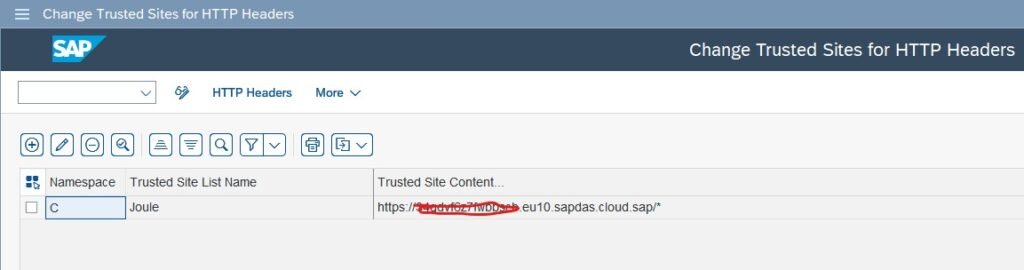
- Save your changes.
Step 3: Test the Integration
Once the URL is added to the trusted sites:
- Reload the Joule application
- Retry accessing Joule from S/4HANA
The “refused to connect” error should now be resolved.
Conclusion
The “refused to connect” issue after Joule integration is not a Joule defect but a security restriction in S/4HANA. By maintaining the Joule URL in ICF_HEADER_FRAMEWORK → Trusted Sites, you allow secure communication between SAP S/4HANA Private Cloud and SAP Joule.